Master Cost Center
Anda dapat mengelola data cost center.
Membuat data Cost Center
-
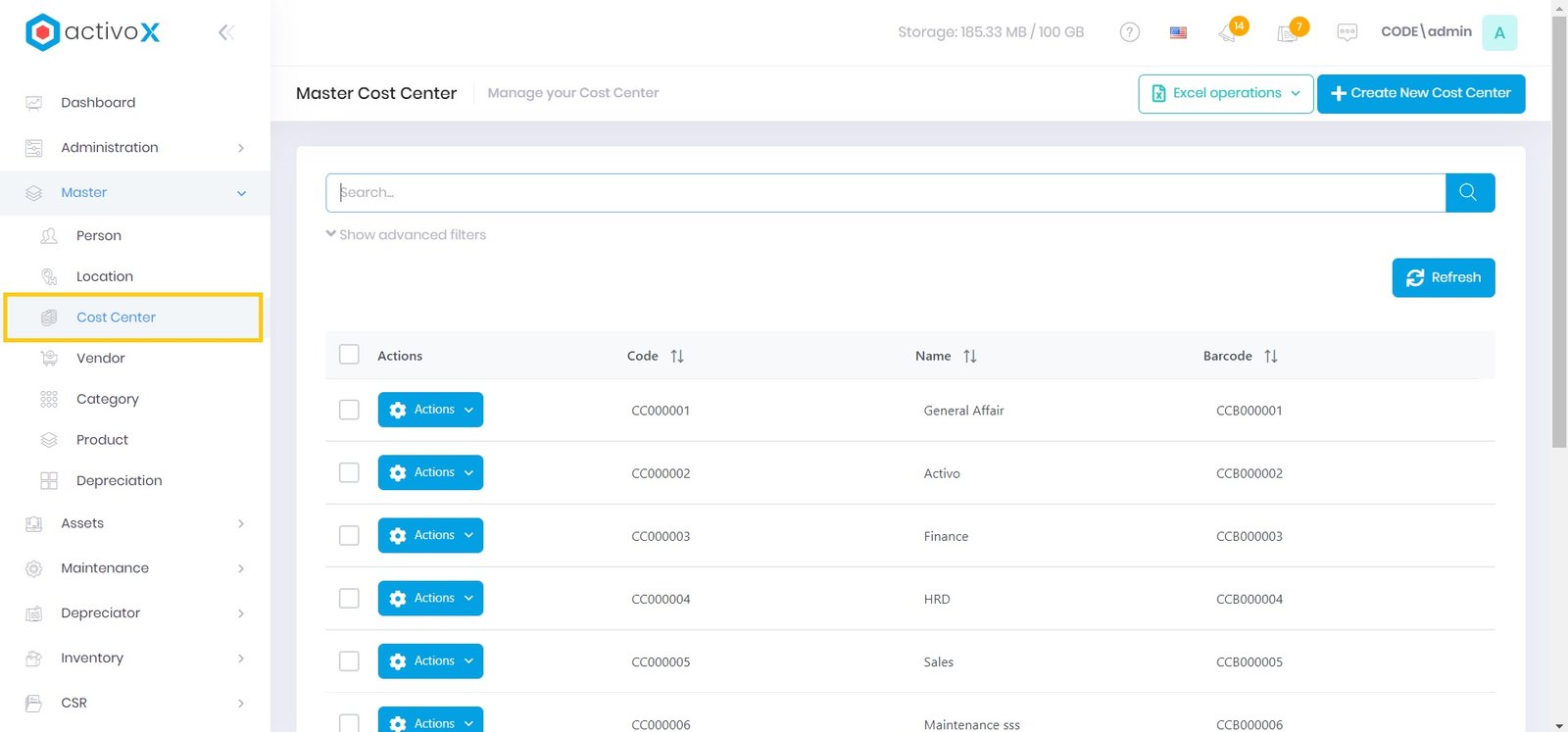
Klik menu master Cost Center
-
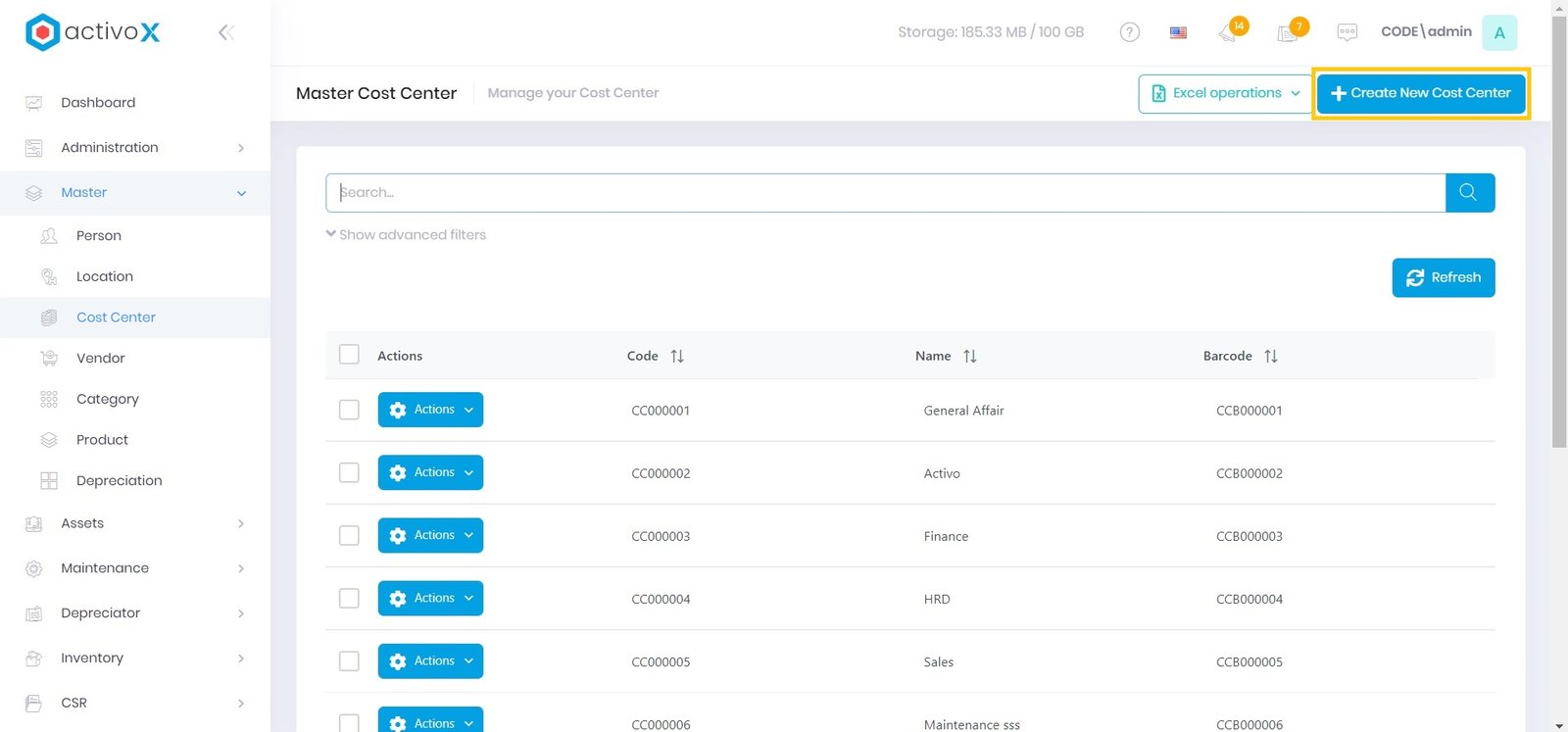
Klik Create New Cost Center
-
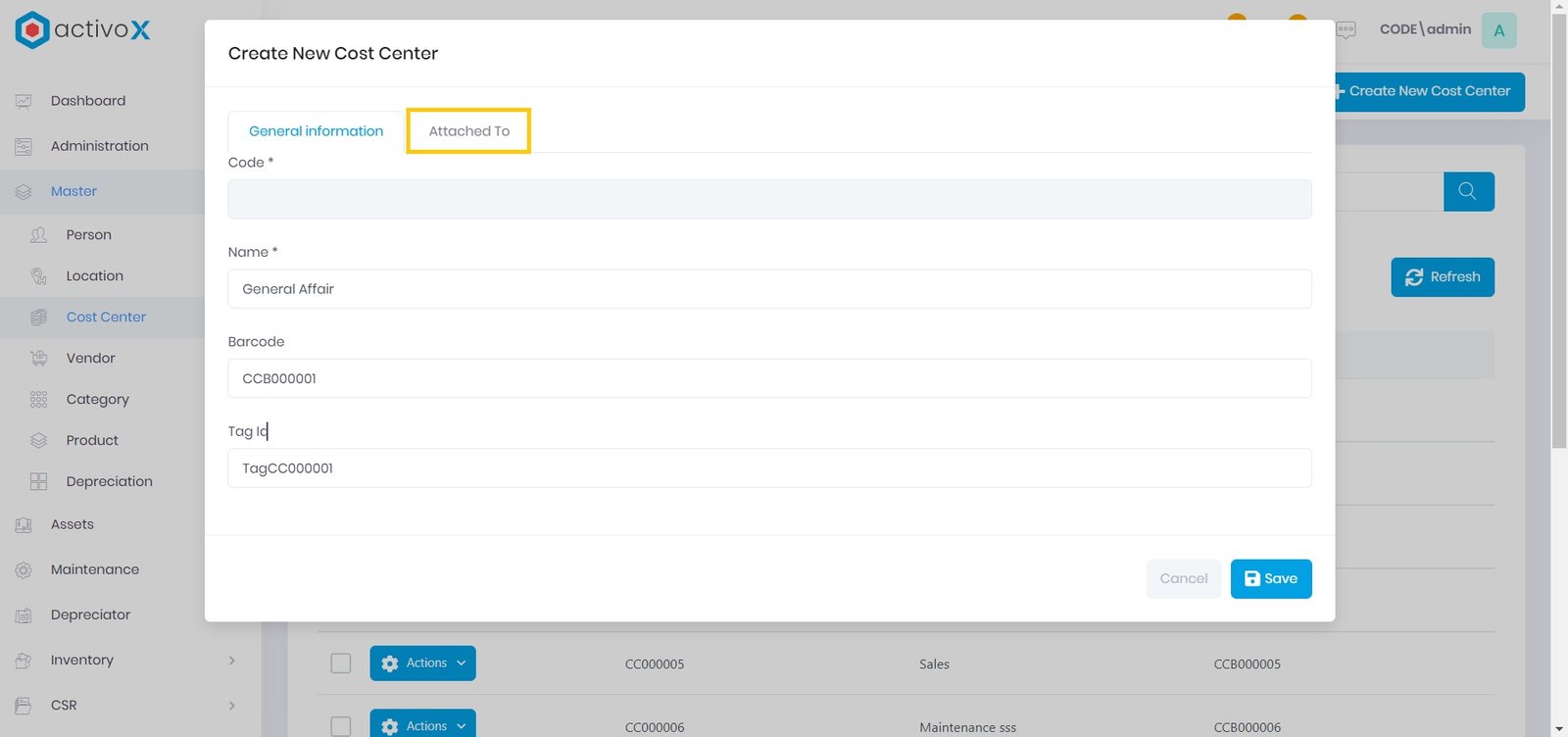
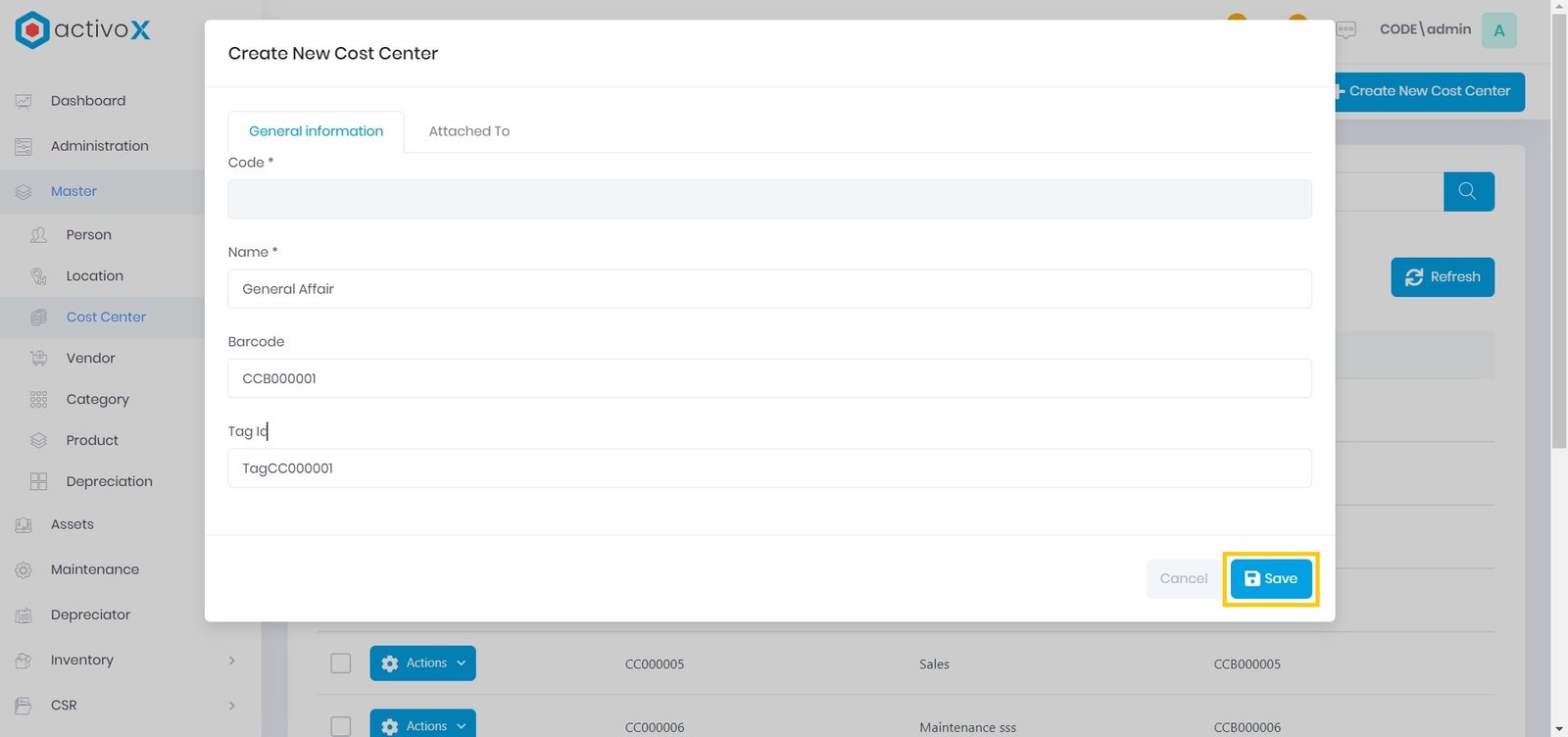
Masukkan nama cost center
- Masukkan barcode
- Masukkan id tag
-
Klik tab Attached To
-
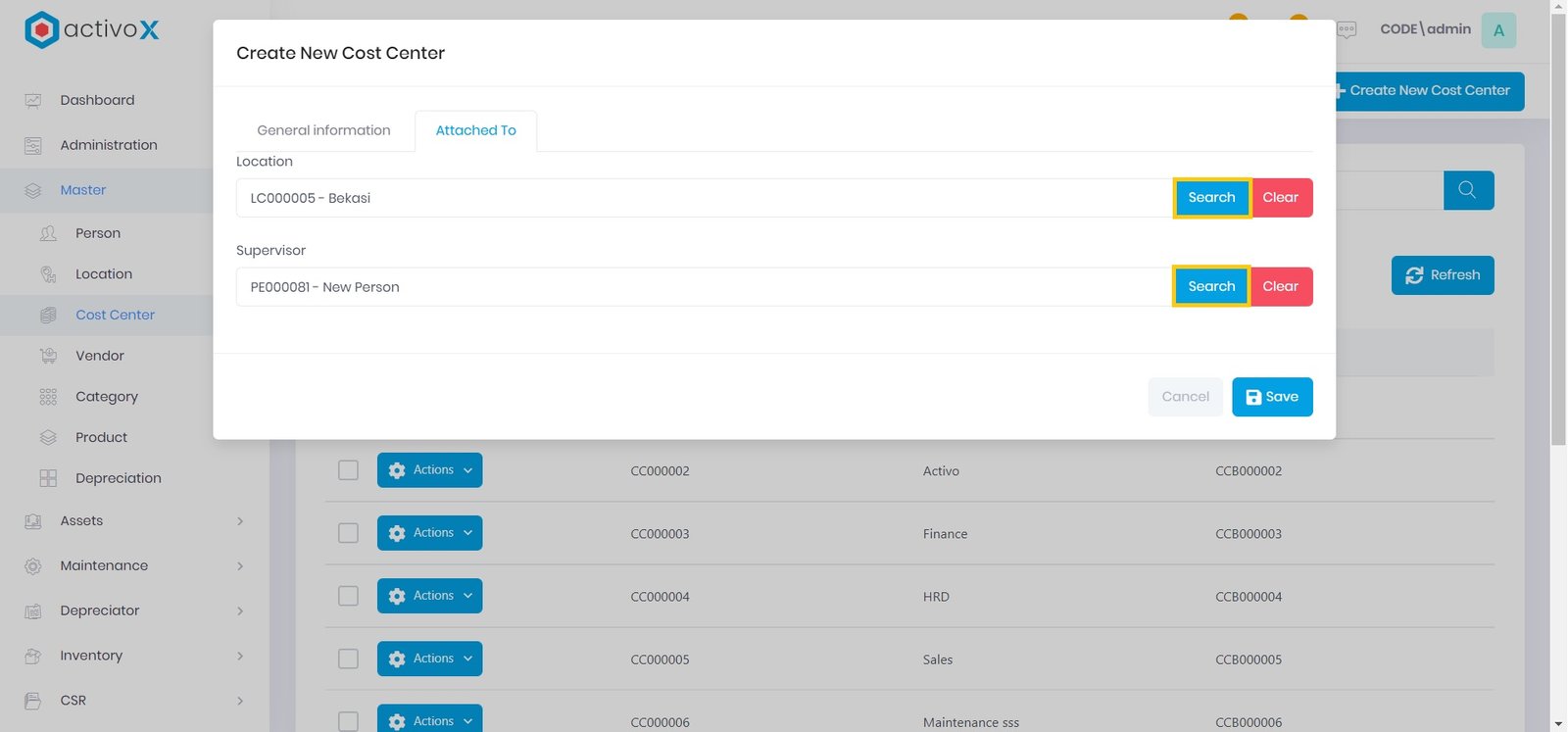
Klik Search, lalu pilih Lokasi pada kolom lokasi
-
Klik Search, lalu pilih Pengawas pada kolom pengawas
-
Setelah selesai Anda dapat klik Save
Note:
- Kolom Kode akan terisi otomatis!
- Pastikan Anda memasukkan nama cost center(tidak dapat dikosongkan) sebelum klik simpan!
Mengubah data Cost Center
-
Klik menu master Cost Center
-
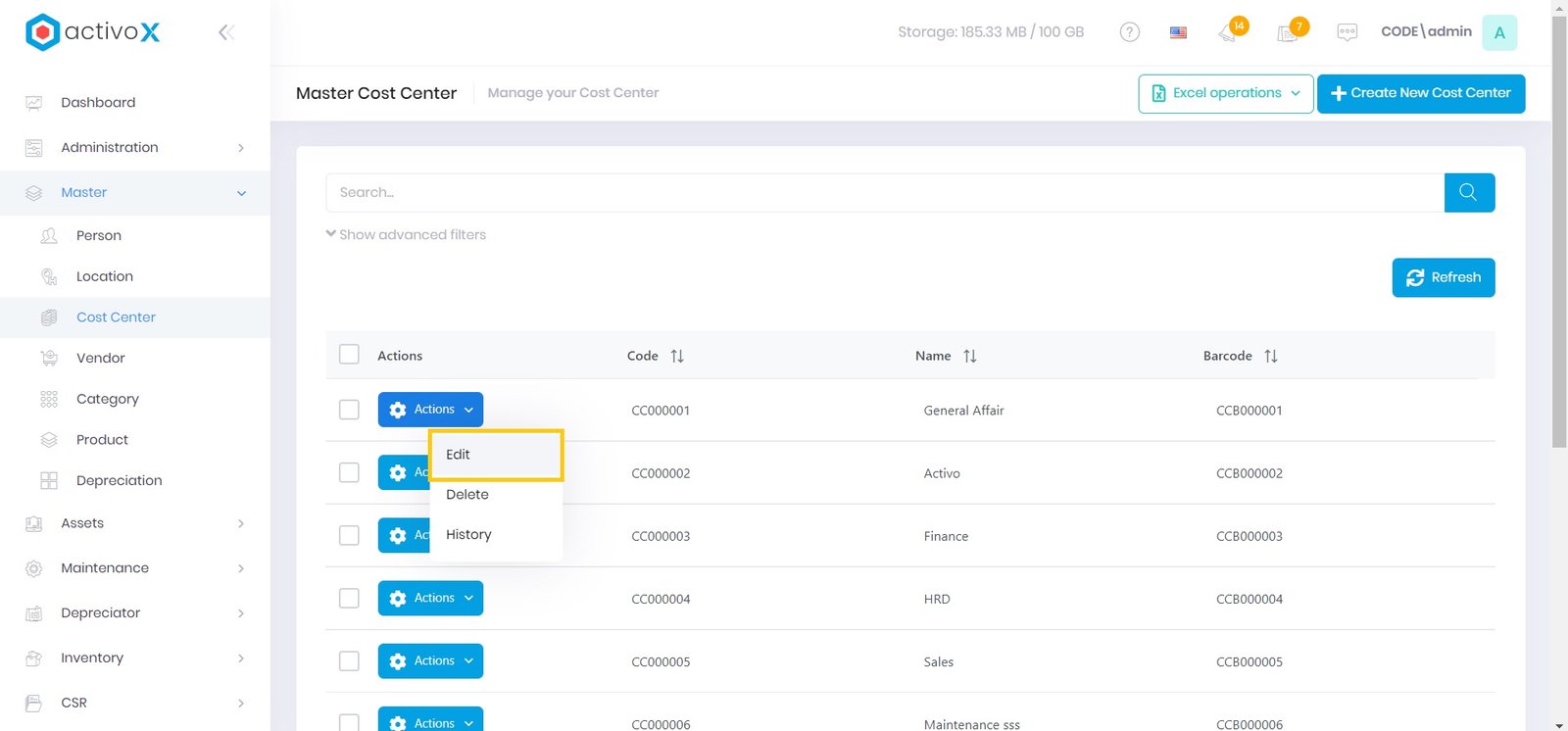
Klik Actions, lalu pilih Edit
-
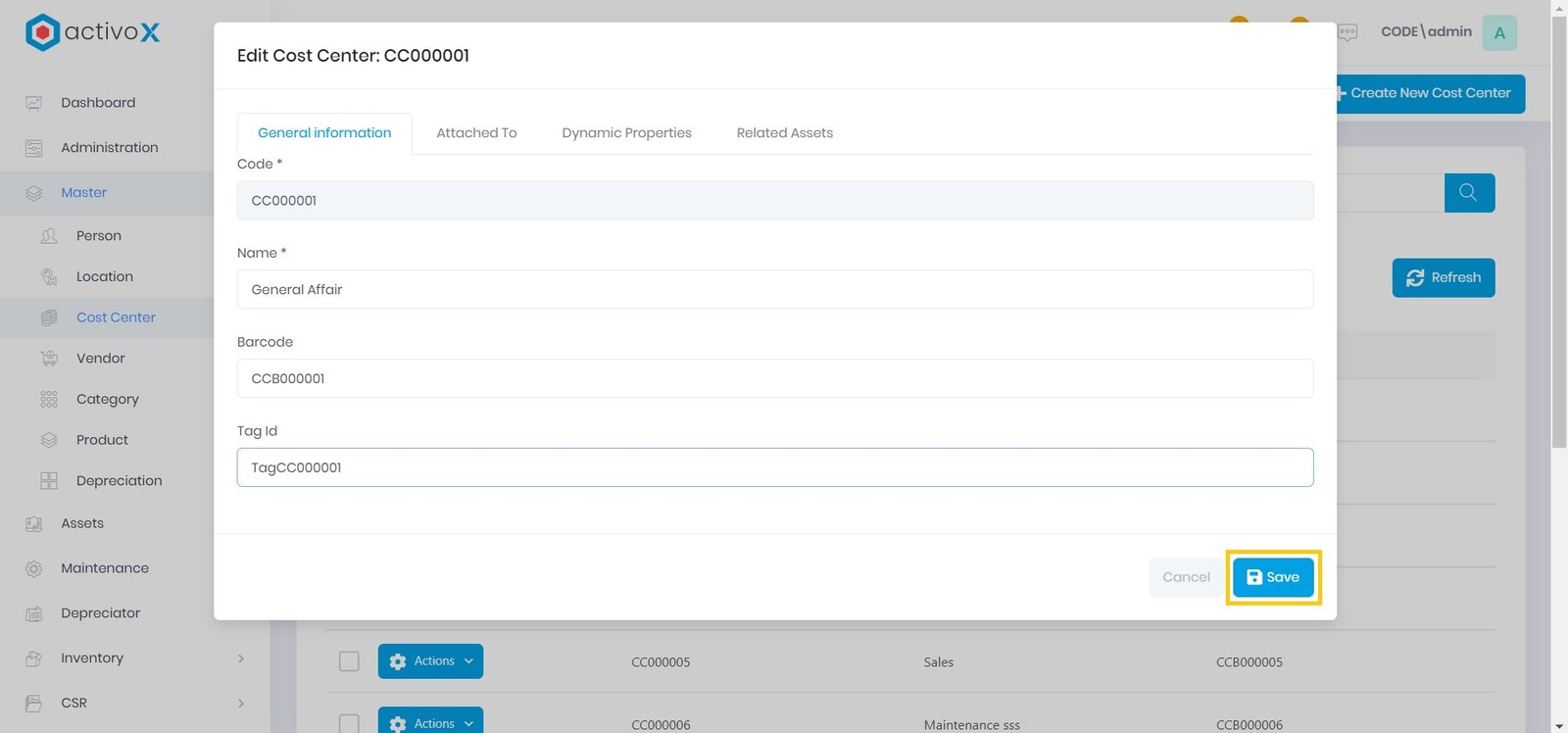
Ubah informasi cost center, lalu pilih Save
Note:
- Kolom Kode tidak dapat diubah!
- Pastikan Anda memasukkan nama cost center kembali (tidak dapat dikosongkan) sebelum klik simpan!
Menghapus data Cost Center
-
Klik menu master Cost Center
-
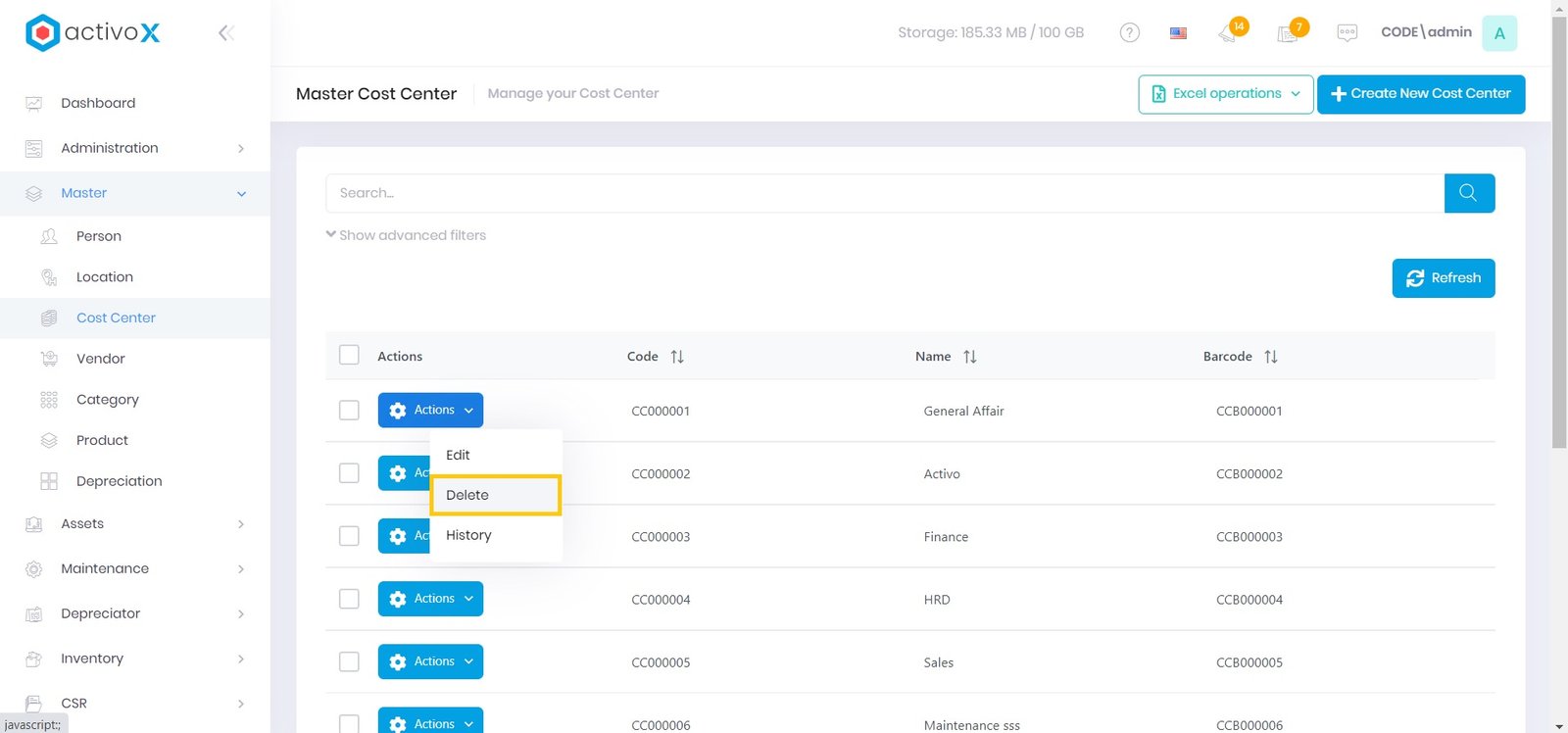
Klik Actions, lalu pilih Delete
-
Untuk konfirmasi penghapusan data Cost Center Klik Yes
Note:
- Pastikan sebelum menghapus data yang dipilih adalah benar karena data yang telah terhapus tidak bisa dibatalkan atau ditarik kembali!
Melihat Riwayat data Cost Center
-
Klik menu master Cost Center
-
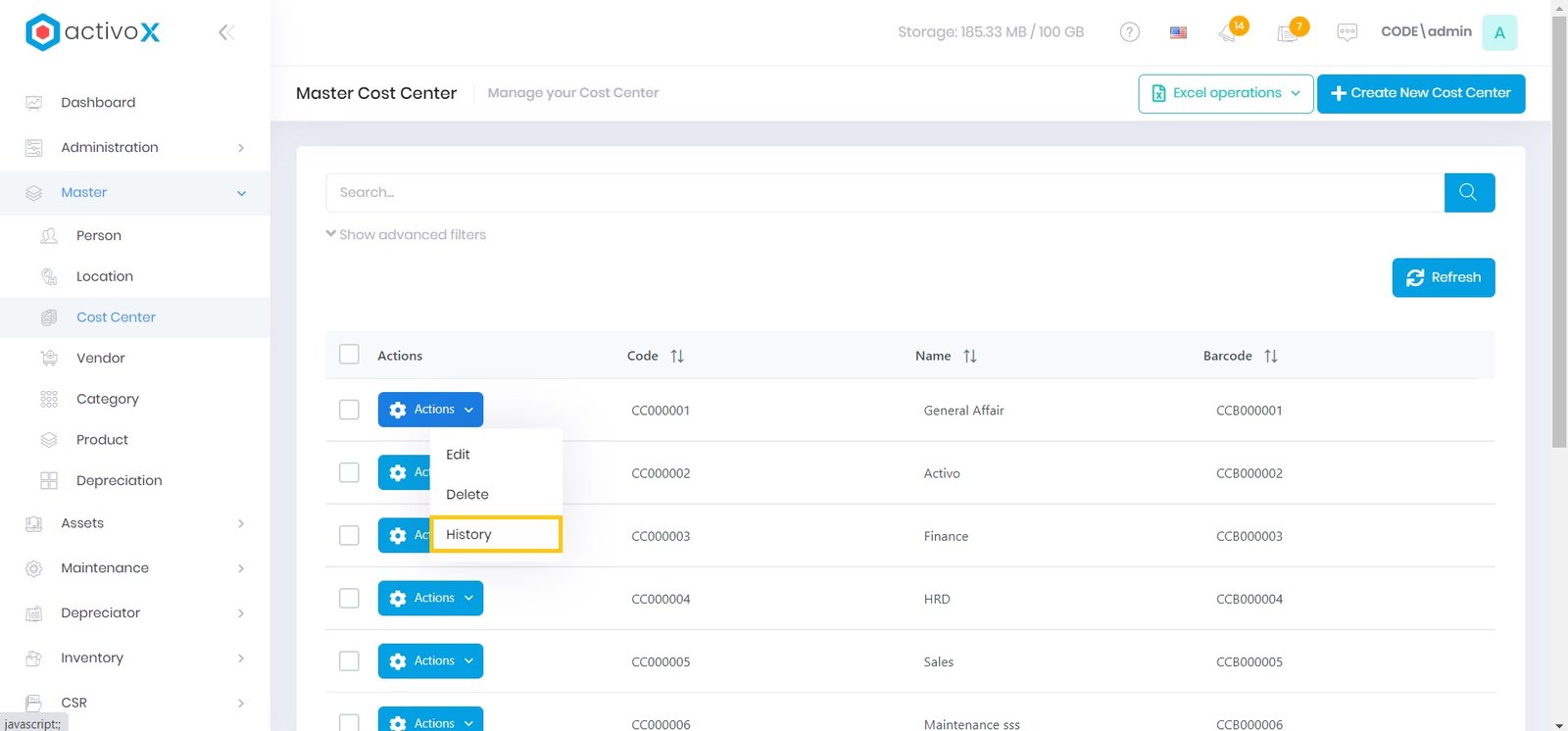
Klik Actions, lalu pilih History
-
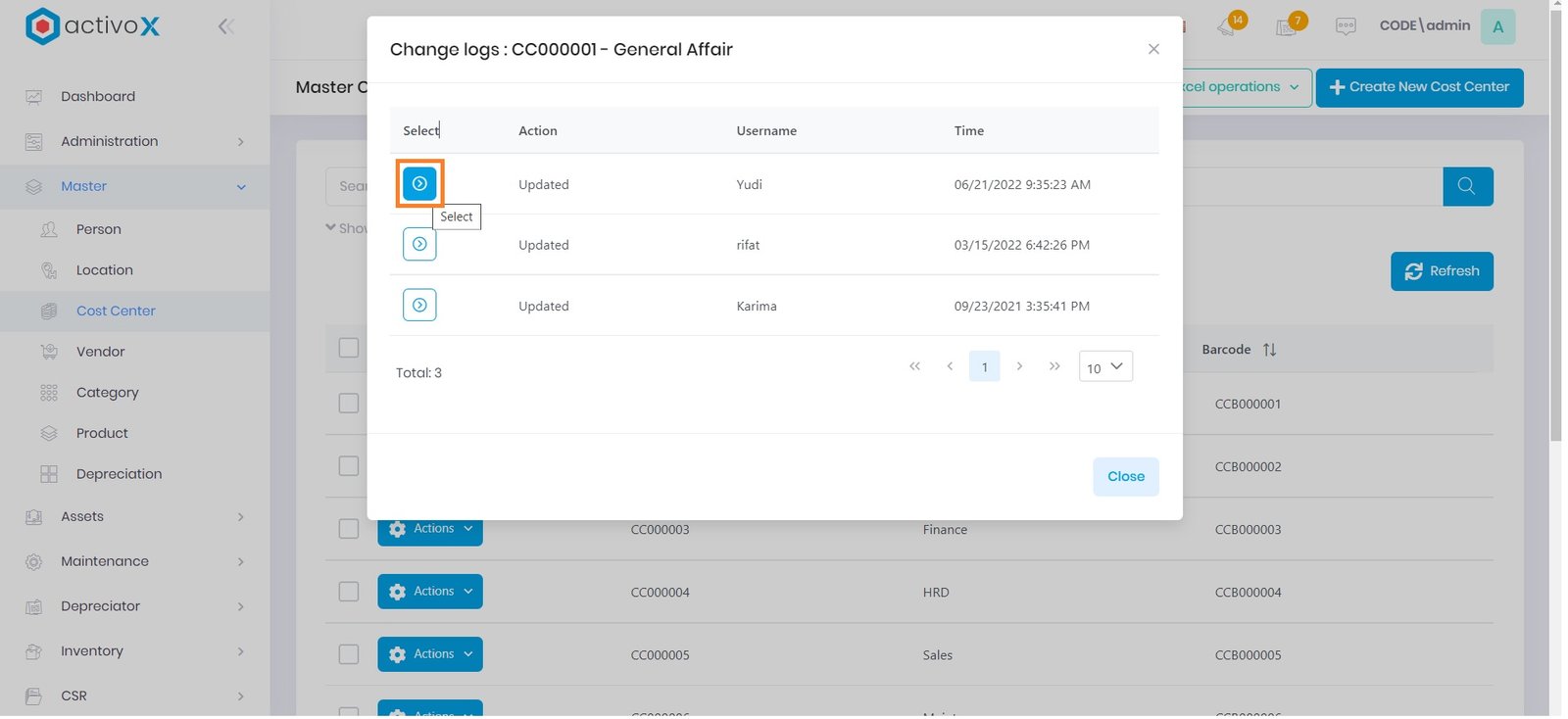
Setelah selesai melihat riwayat data cost center klik Close atau X
Note:
- Untuk melihat detail riwayat Anda dapat klik icon Select disalah satu riwayat data Cost Center!
Import Cost Center
Anda dapat menambahkan banyak cost center dalam waktu singkat dengan menggunakan mengimpor file excel yang anda isi
-
Klik menu master Cost Center
-
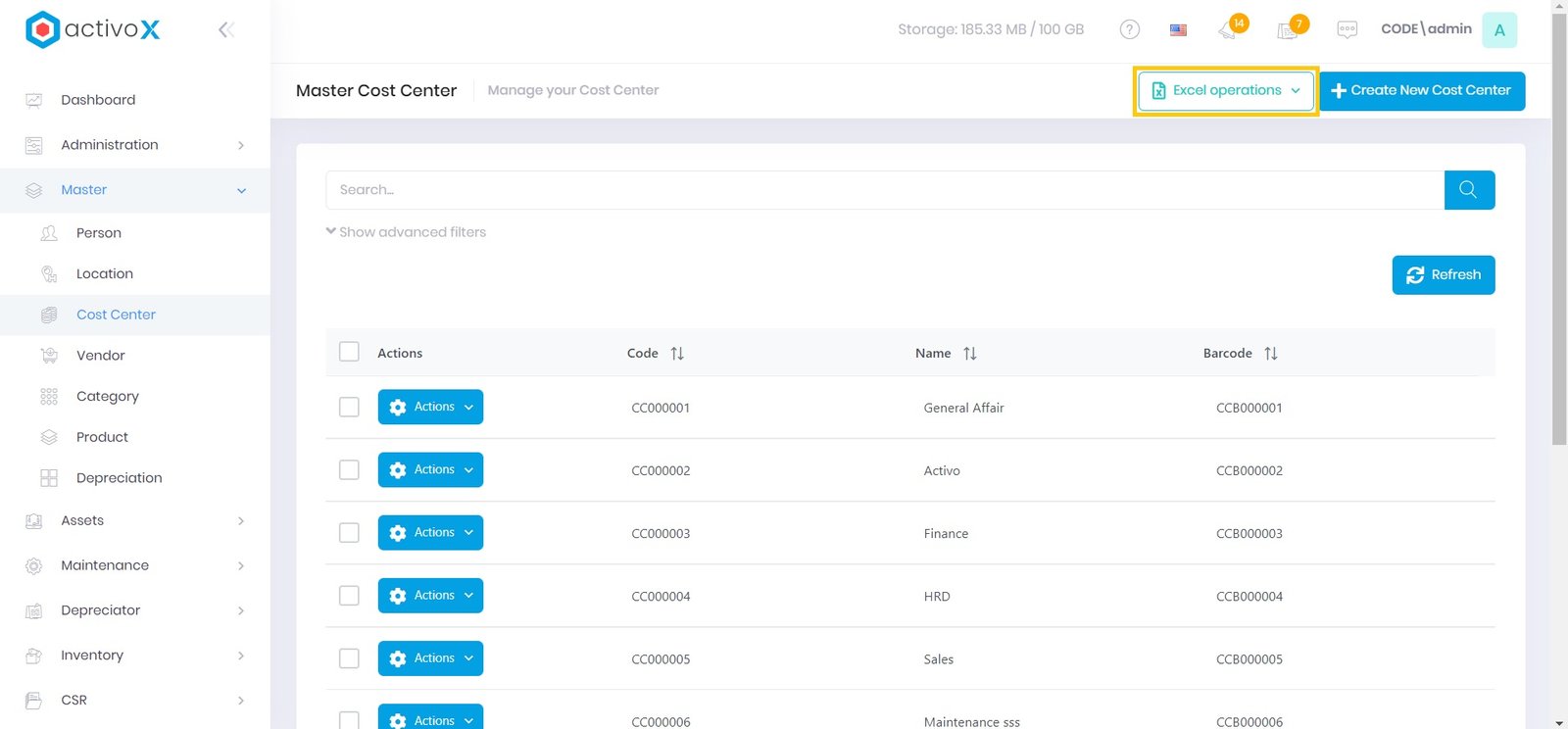
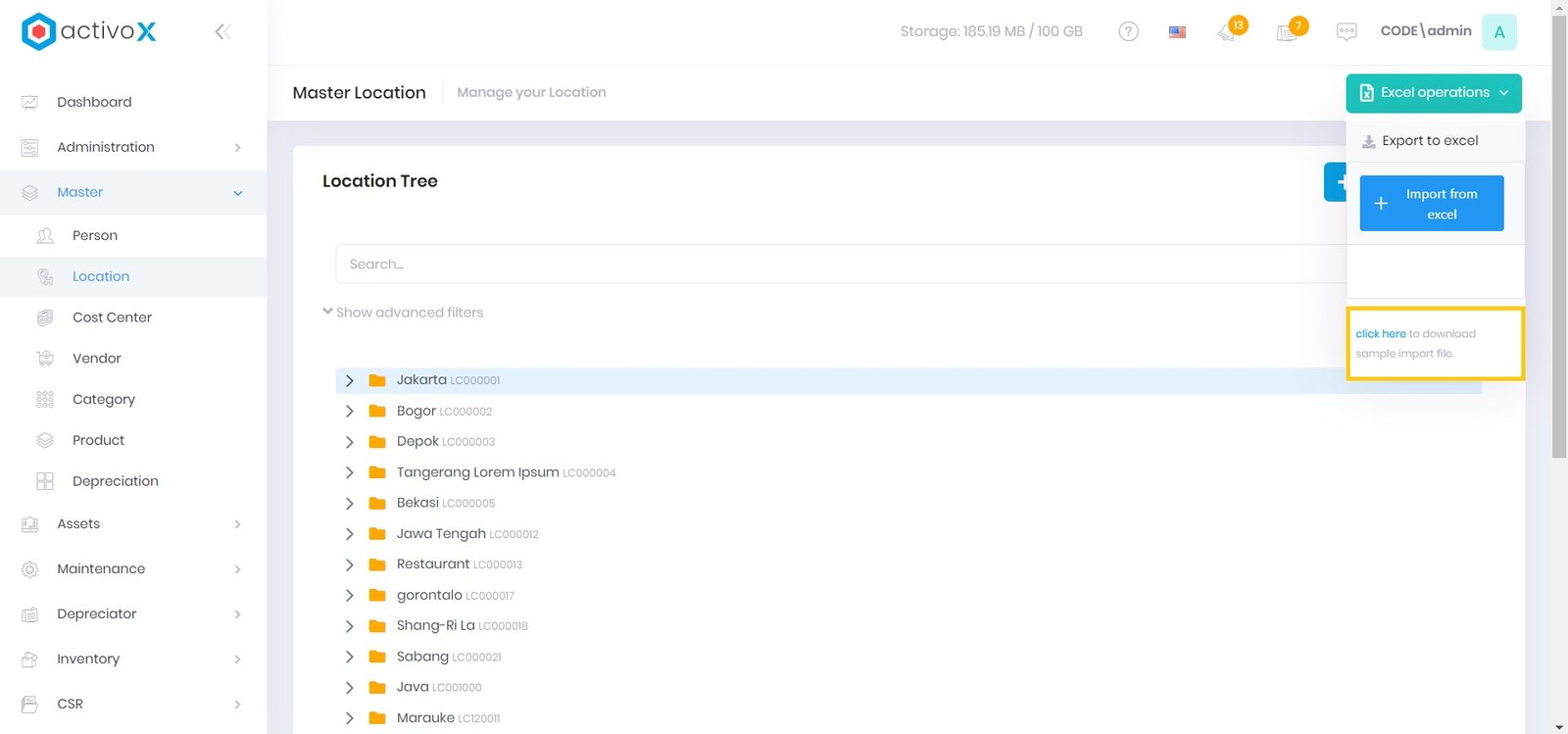
Klik Excel Operations
-
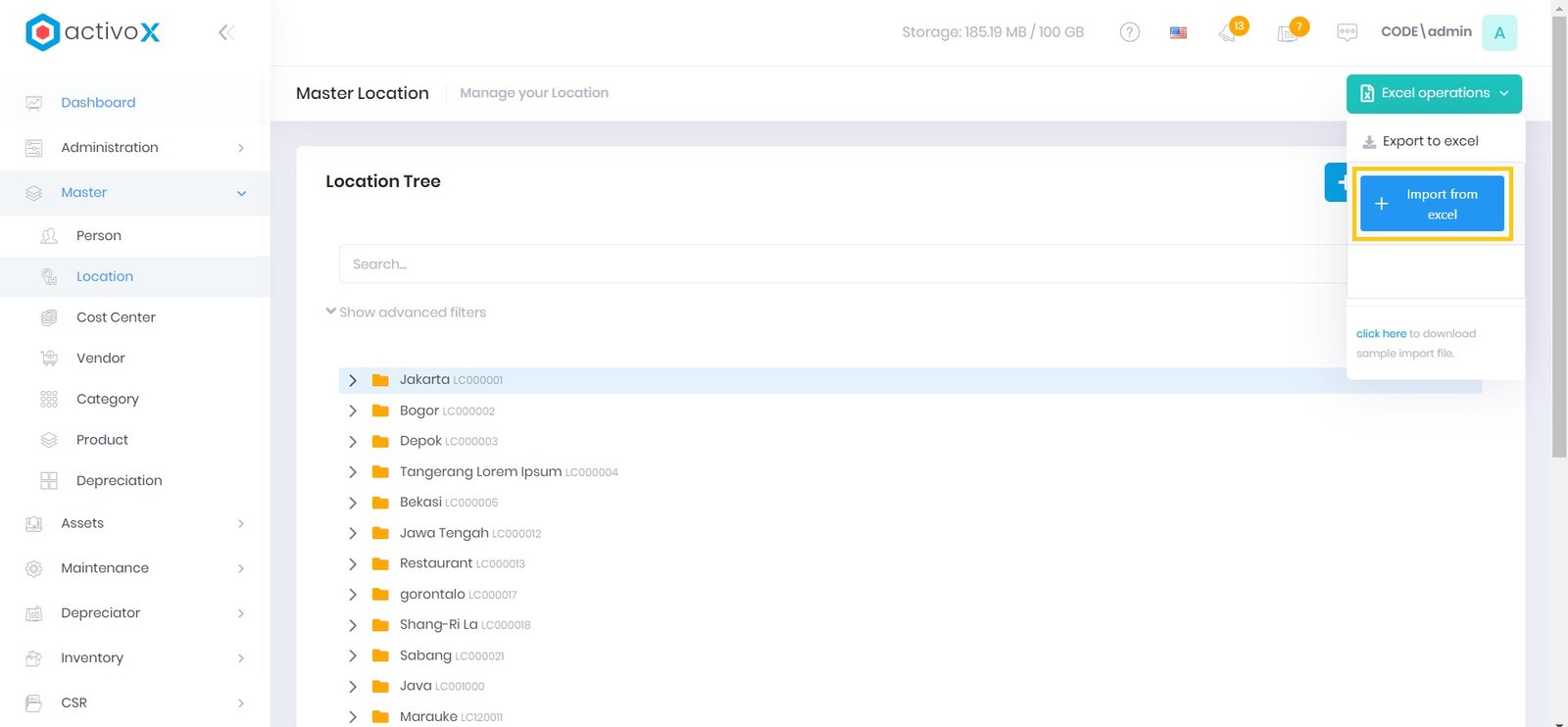
Pilih Import from excel
-
Pilih template import atau file excel yang sudah Anda isi
Note:
- Pastikan template import atau file dalam bentuk csv, xls, atau xlsx.
- Anda dapat mengunduh contoh file import dengan pilih Click here.
Export Cost Center
Anda dapat menampilkan daftar Cost Center dalam excel
-
Klik menu master Cost Center
-
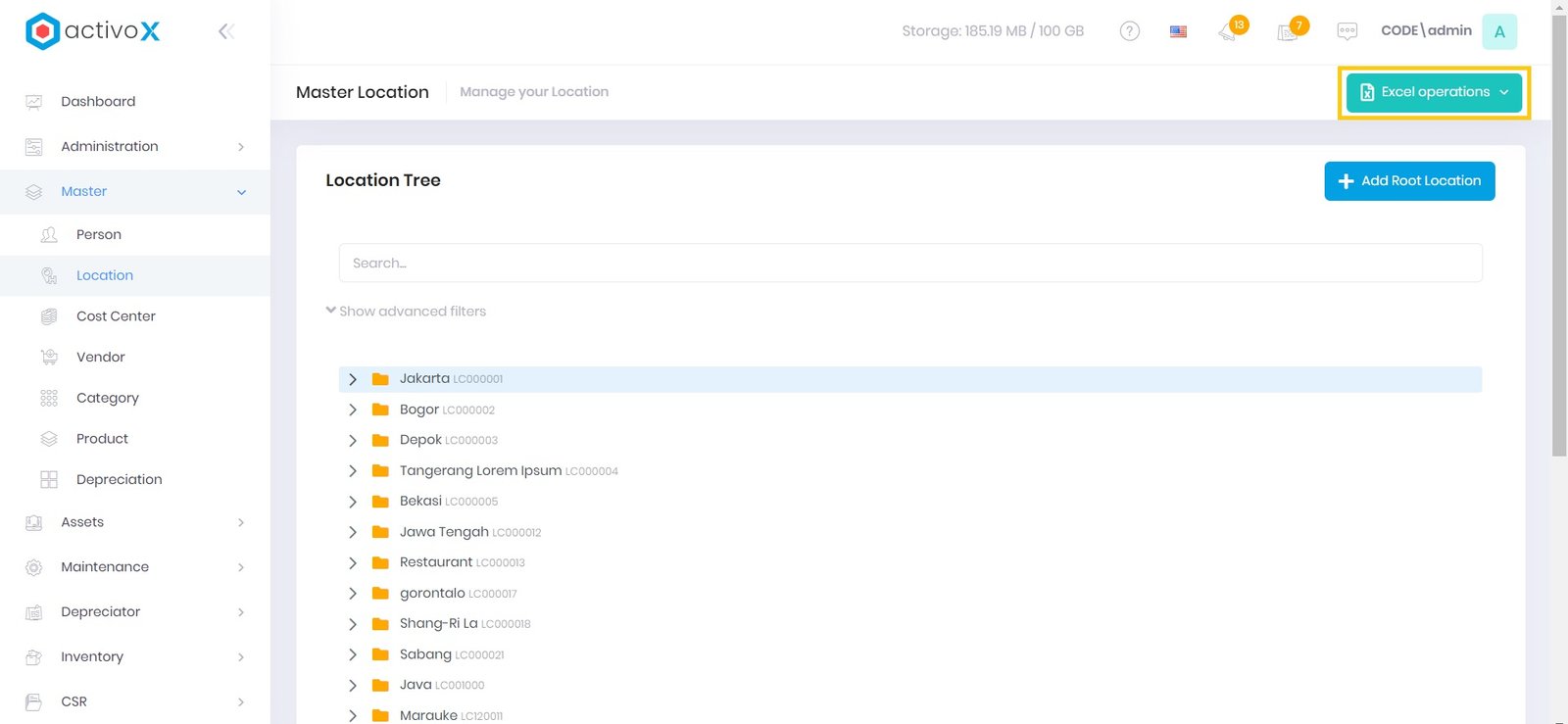
Klik Excel Operations
-
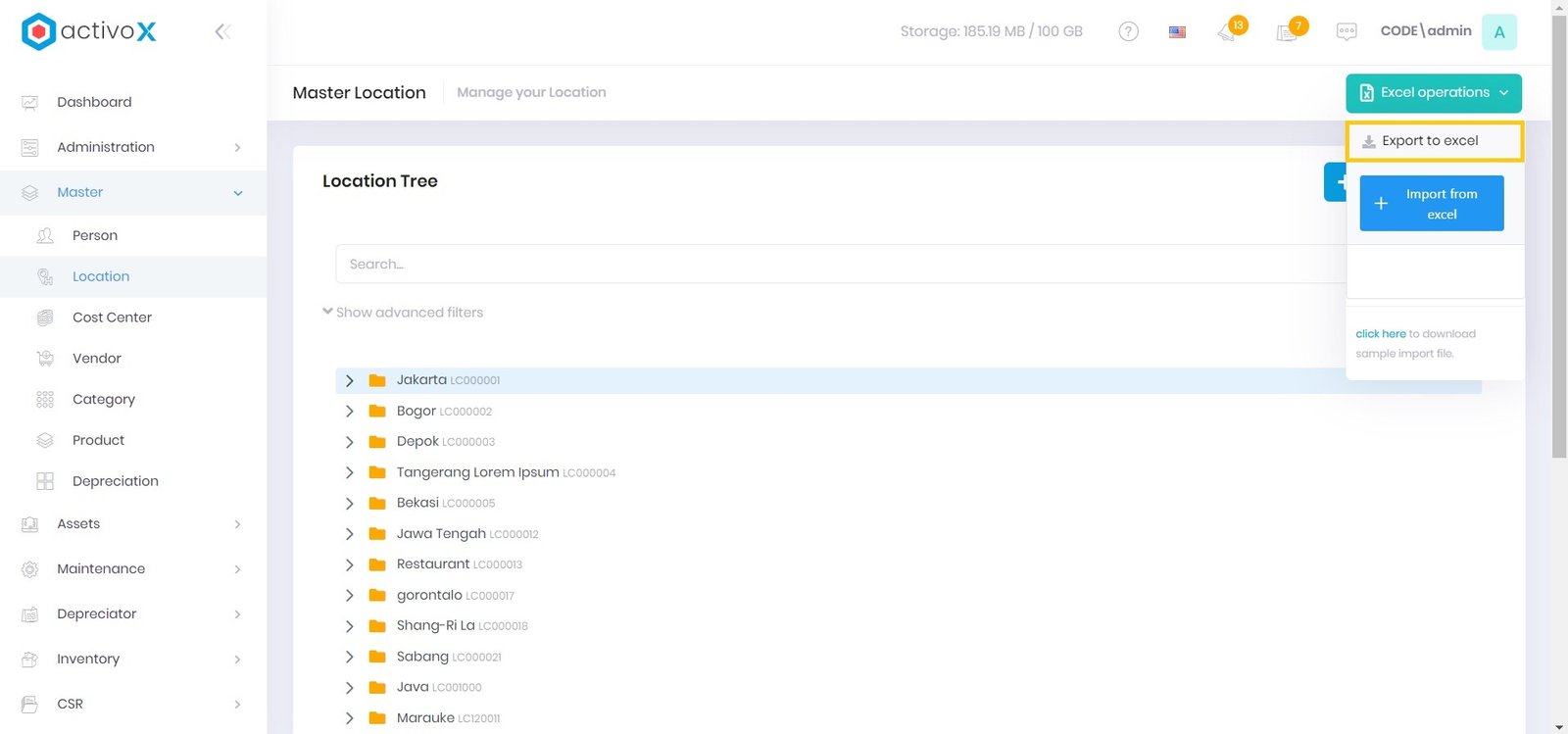
Pilih Export to excel
-
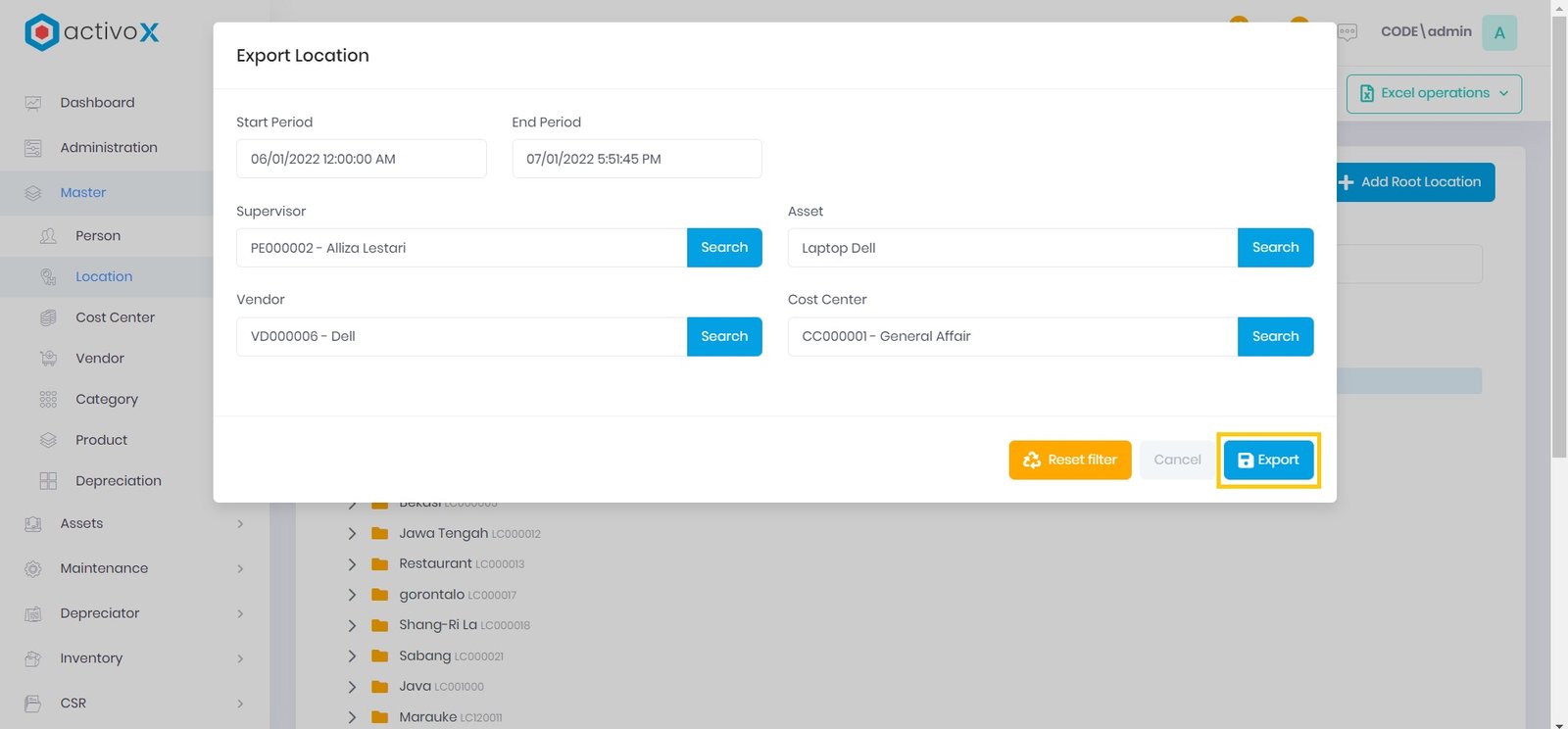
Masukkan Periode mulai dan Periode berakhir
- Klik Search, lalu pilih Aset pada kolom aset
- Klik Search, lalu pilih Lokasi pada kolom lokasi
- Klik Search, lalu pilih Pengawas pada kolom pengawas
-
Setelah selesai klik Export
-
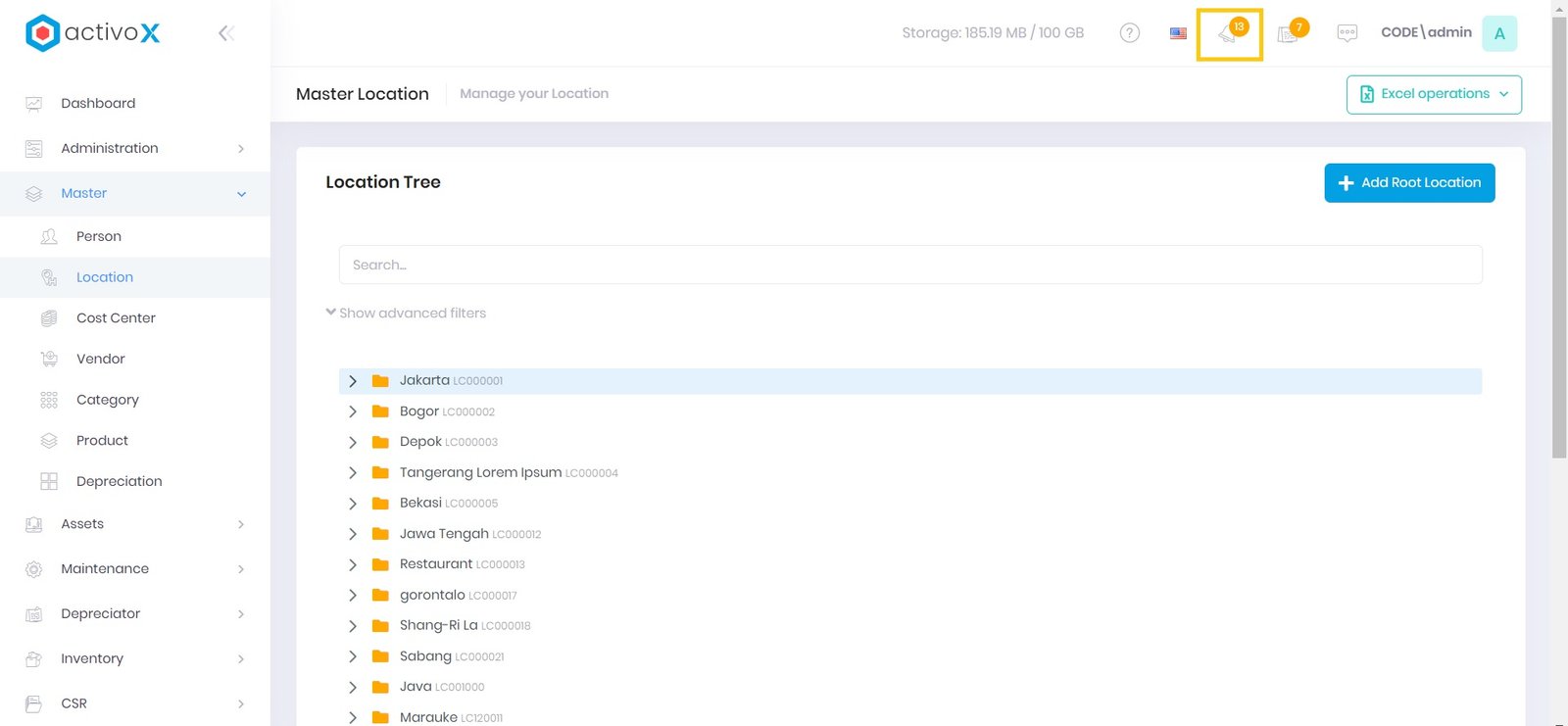
Buka Notifications
-
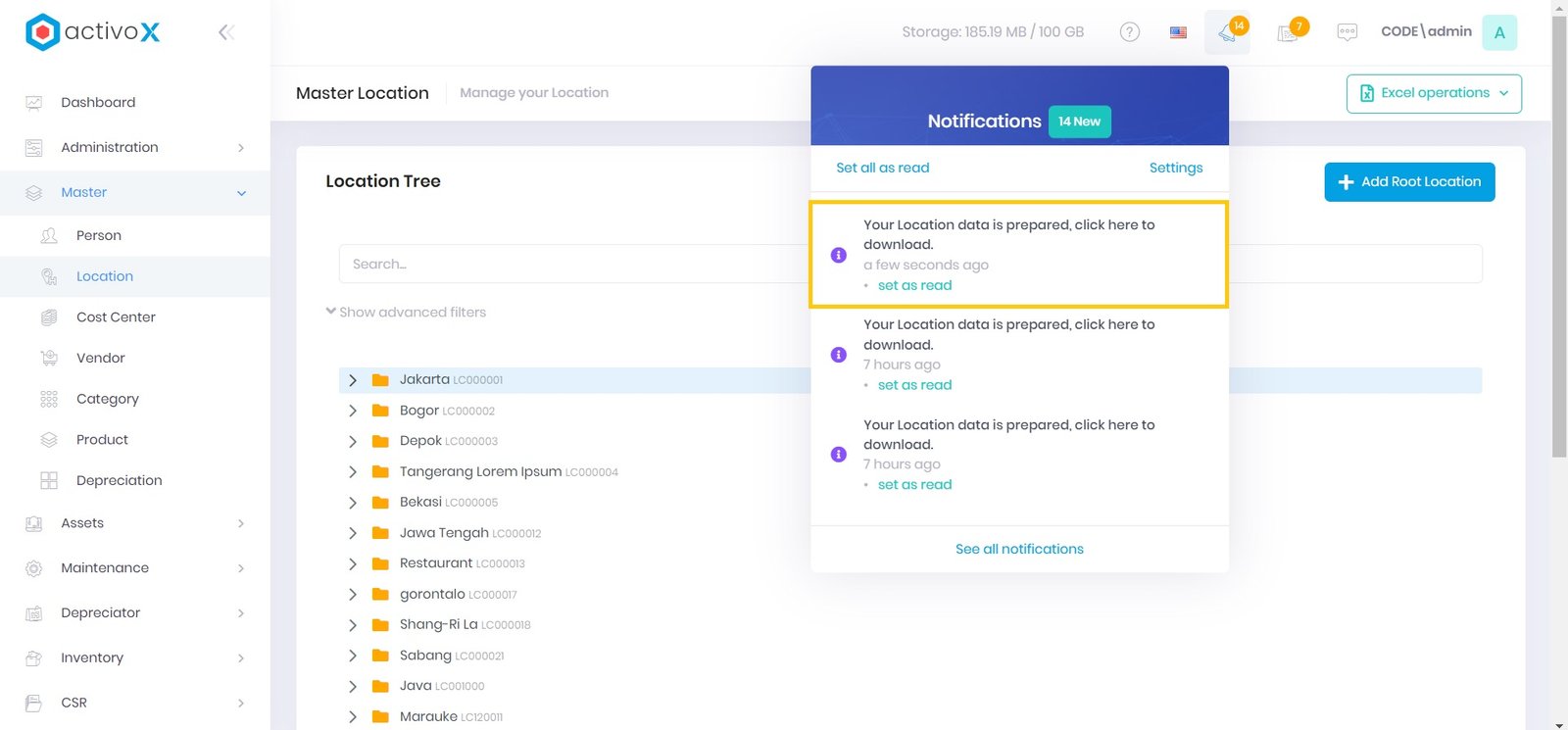
Klik pemberitahuan jika data Cost Center selesai disiapkan
Note:
- Pastikan Anda memasukkan Periode mulai dan Periode berakhir (tidak dapat dikosongkan) sebelum klik Export!
- Saat melakukan Export from excel Anda dapat mengisi atau mengosongkan kolom Aset, Lokasi, dan Pengawas sesuai kebutuhan Anda!